
Features
From reading to remembering, in one interface.
Reading and highlights
Extract the text, adjust typeface, size, spacing and theme, highlight what matters. Reading and editing share one draft.
Press aaa to read and eee for the full-page editor, where you change the title, properties and Markdown, then copy, download or clip.
The outline and sidebar can be collapsed.
Reading, copying text and existing captions need no AI setup.
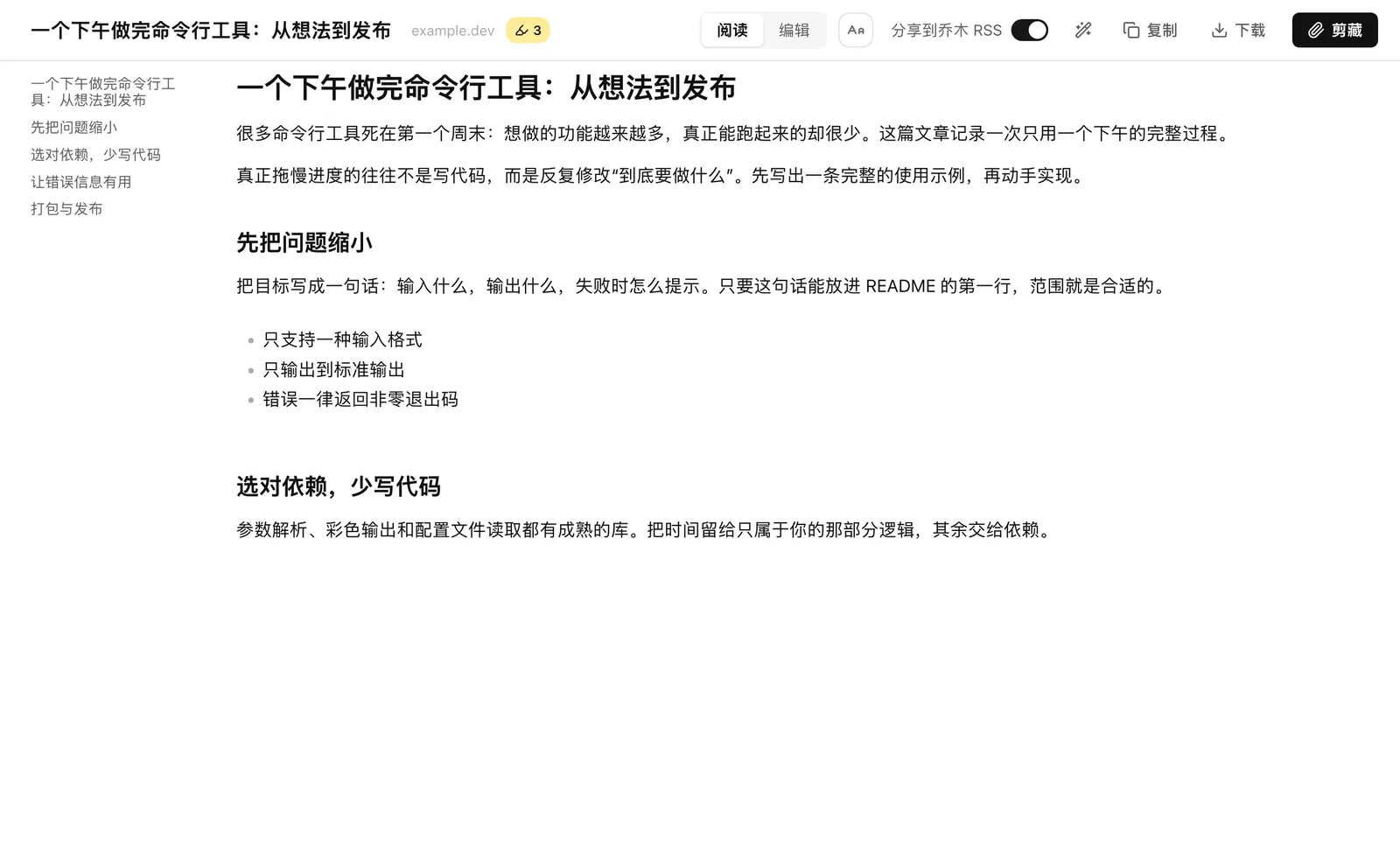
AI chat
Ask about the whole article or a selected passage. Answers stream in and the conversation is kept per article.
Open a separate AI sidebar beside the original page and quote what you selected. It re-reads the page after a tab switch or navigation and keeps history by full URL.
Search the web and read the sources, find photos and generate images in the background. Generated images, uploads and authorized folders live in one library, and can be inserted into an article.
Bring your own models and accounts: many providers and custom compatible endpoints, plus Jimeng and local Codex image generation. Each model has its own reasoning level; save global instructions and favorite prompts.
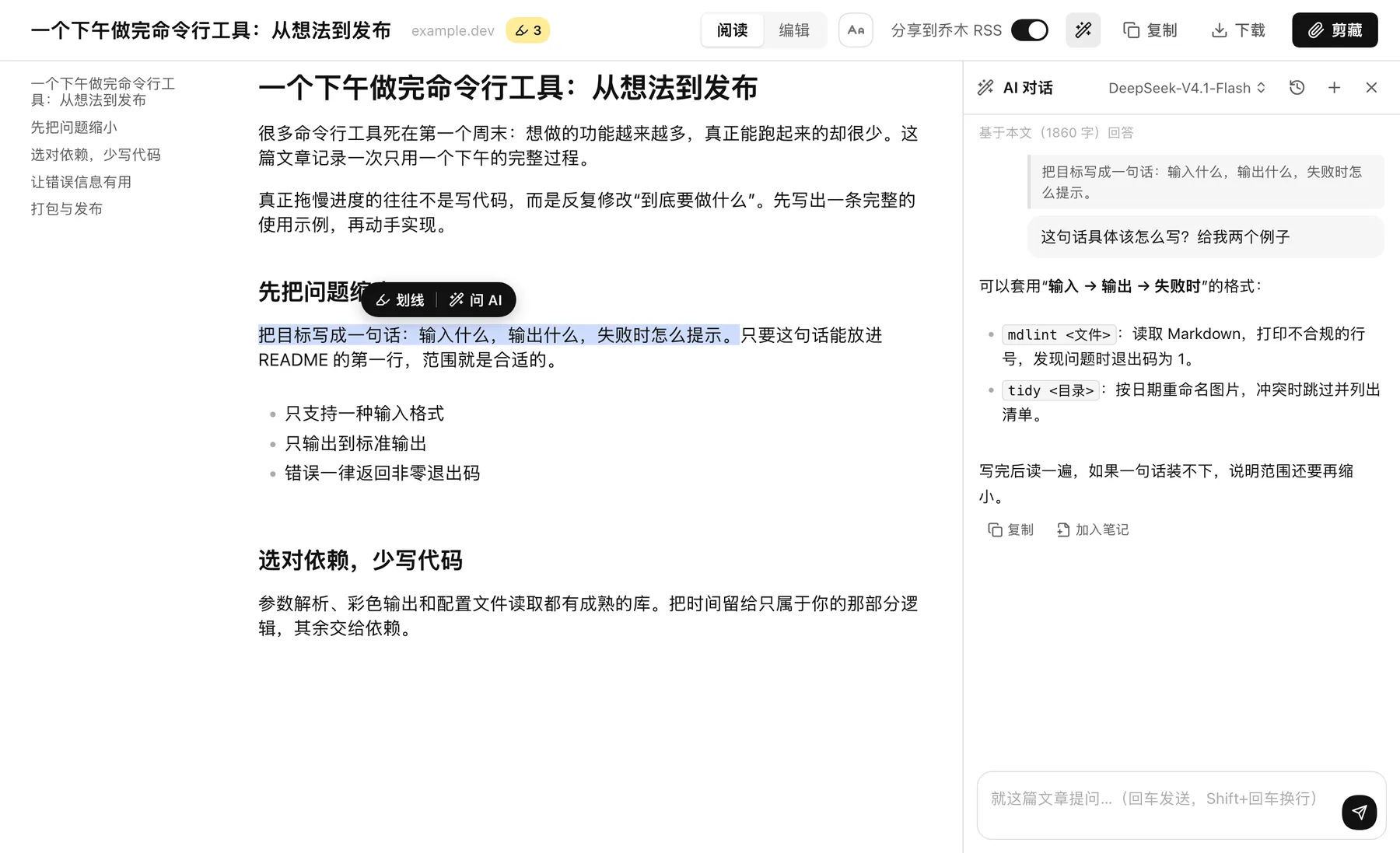
Video and podcast study
Player and transcript on one screen: search captions, click a timestamp to return to the line, adjust the layout.
YouTube, Bilibili and TED use official captions first, with the available languages to choose from. Bilibili captions usually need a login.
Podcasts, recordings and local audio or video work too: paste a link, choose a file or browse recent episodes of suggested podcasts.
Dock, theater, mini-player and picture-in-picture layouts. Douyin, TikTok, X, Vimeo, SoundCloud and others offer a study entry; whether a link resolves depends on the site, your login and the network. Live streams and DRM are not guaranteed.
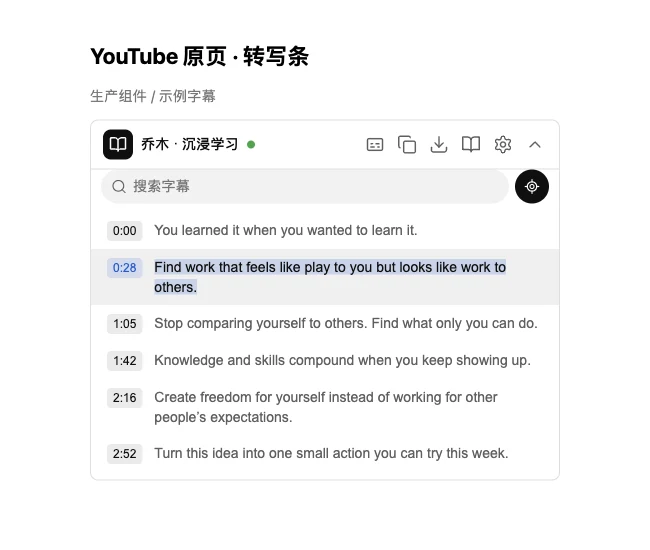
Generate captions
With no official captions, use a local engine or a cloud service you choose.
Local: MLX Whisper or Qwen3-ASR on Apple silicon, faster-whisper elsewhere. Engines and models install on demand with size and progress shown, and can be cancelled. Local recognition does not upload the audio.
Cloud: configure a service, model and key in settings, save several and switch from the caption bar. The audio goes to the service you pick and is billed by it.
Needs the local helper. Finished results are cached; the page title, author and description can seed the recognizer to help with names and terms.
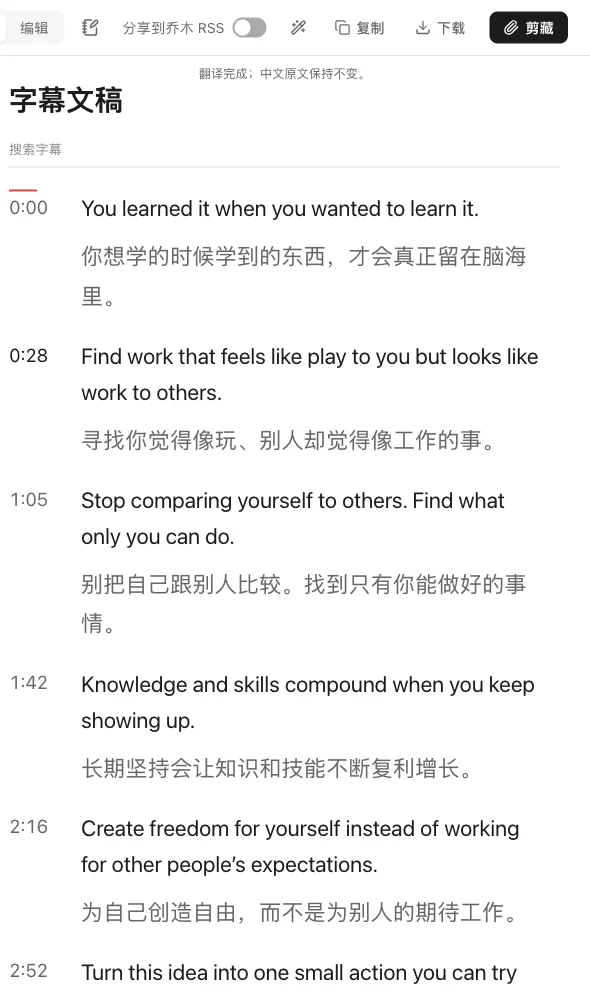
Bilingual captions
Translate with your own model. Original and translation sit side by side, with timestamps kept.
When clipping, choose the original, the translation or both. Copy and caption text export follow what is on screen.
Unfinished translations keep the original text and can be retried.
Learning notes
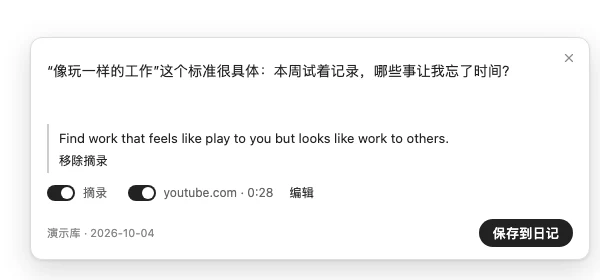
Write what you understood and append it to today's Obsidian daily note.
Press N on a study page or iii on any page to open the same card. You can write without selecting anything; a selection adds an excerpt, a video adds its source and time, and an AI answer can be added too.
Closing the card keeps the draft and a failed save can be retried. The helper appends the note to today's daily note; it is never submitted to RSS.
Needs the helper and the Daily notes core plugin in Obsidian, with a numeric date format and no daily-note template.
Long-form writing
Write articles in the browser. The editor is WYSIWYG and the AI assistant sees the whole piece and your selection.
Press U three times on any page, or create an article in settings. It has an outline, a / command menu, code highlighting, formulas, Mermaid diagrams and images.
AI can polish, shorten, expand, summarize and translate a selection, suggest titles, write summaries and add images. Every change is previewed first and only applied when you accept. The prompt library, reasoning levels and image attachments are in the assistant panel.
Articles and images stay in this browser on this computer and export as .md or .zip. "Publish to X Article" creates an article draft in your signed-in X for you to check and publish yourself.
Clipping and templates
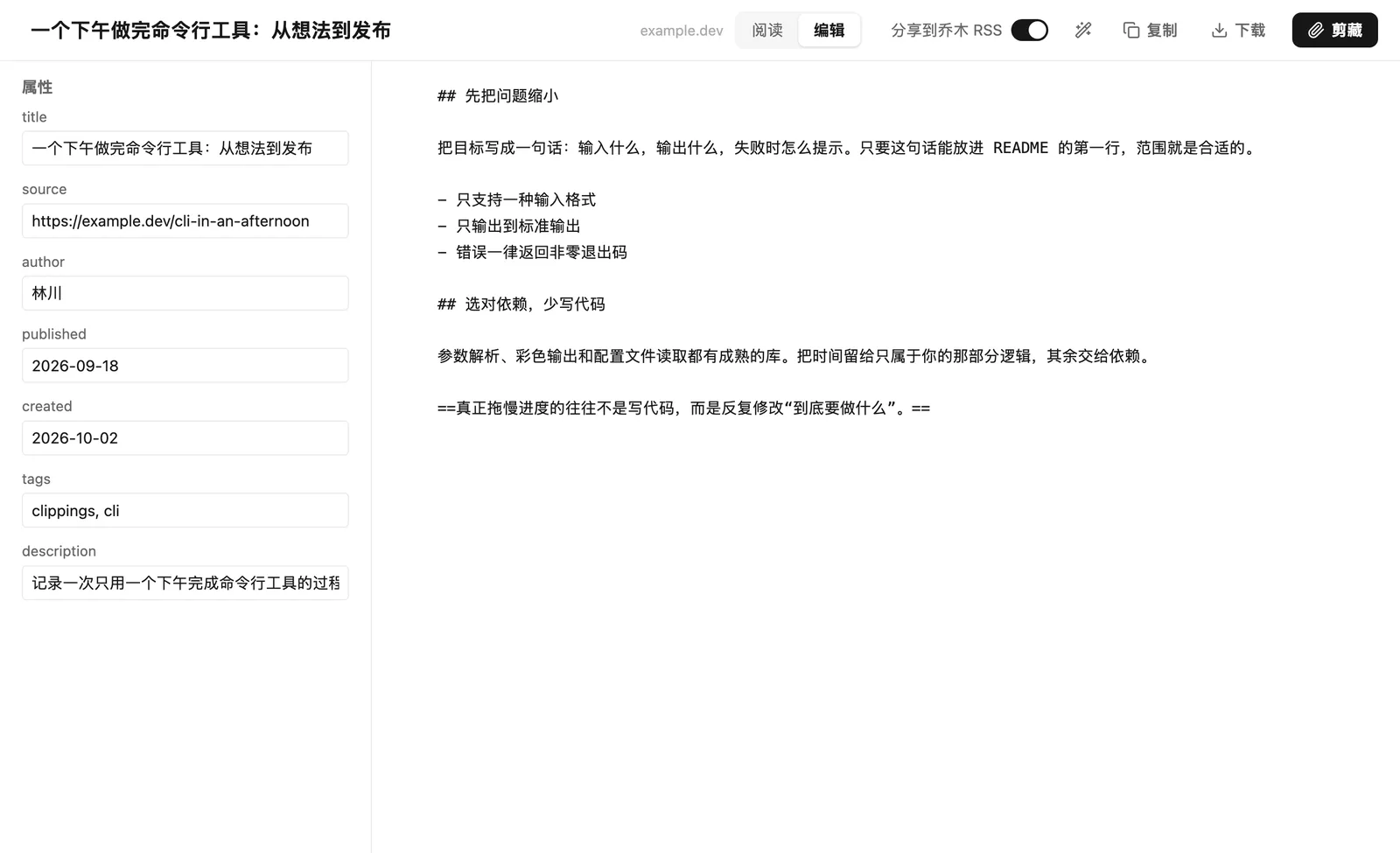
Templates match by URL and write into the vault and folder you choose.
Templates unify properties and body, match by URL and can include AI prompt variables.
With the helper, notes go straight into the chosen vault and folder. Without it, copy or download Markdown, or save through an Obsidian URI.
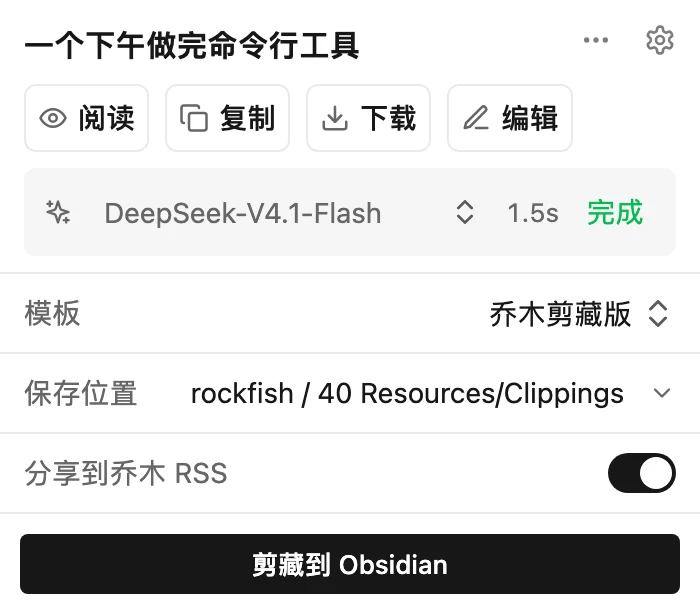
The popup offers Read, Copy, Download and Edit.
Share to Qiaomu RSS
Optional. When ticked, the link, title, clipped text and cover go to a public reader-submitted feed.
Off by default, adjustable in settings. Once on, the content is public, so check before saving a private page.
Reading, editing and saving learning notes never submit anything.
Save audio and video files
Download whole files from supported study pages, with progress and a cancel button.
Both editions can save. The store edition asks for the optional downloads permission on the first click. Browser downloads land in Downloads/乔木剪藏, helper downloads in Downloads/Qiaomu Clipper.
Downloading YouTube video or audio files is only in the standalone edition and needs the local helper. Live streams and DRM are not supported, and nothing is decrypted.
Only save what you have the right to download. Both editions keep Markdown and caption text export.
Triple-press shortcuts
Outside a text field, press the same key three times quickly.
| aaa | Read an article; open the study player on supported media pages |
|---|---|
| eee | Full-page editing |
| qqq | Clip with the default template |
| iii | Open a learning-note card on any page |
| uuu | Start a new long-form article |
Presses must be within about 0.6 seconds of each other. Keys can be changed, left empty to turn one off, or disabled per site. Text fields and combinations with Ctrl, Cmd, Alt or Shift never trigger them, and browser-internal pages do not allow extensions.
Nine interface languages
Simplified Chinese, Traditional Chinese, English, Japanese, Korean, Spanish, French, German and Brazilian Portuguese, covering settings, the popup, reading and study screens, caption generation and helper messages.
Where it works
Chrome on macOS is the main validation target. Firefox and Safari builds exist, and the Windows helper has an implementation and automated tests, but real-device experience still needs checking. Media features depend on the site, your account and the network, so not every link is guaranteed to work.